Search Console: A Beginner’s Guide to Tracking Your Website
Setting up Google Search Console, reading your clicks and positions, checking that your pages are indexed and spotting errors: Google’s free tool explained simply, so you can track your site’s progress.


How can you tell whether your site is making progress on Google? Not by typing your own name into Google every morning: results vary depending on the person searching, the device and the location. The right tool is Google Search Console: free and provided by Google itself, it shows how your site appears in search results. Here’s how to set it up and read it, even without any technical knowledge.
Add your site to Search Console
Go to search.google.com/search-console, sign in with your Google account, then add a property, in other words the site you want to track. You have two options:
- Domain: covers your entire domain, with and without “www”, over HTTP as well as HTTPS. This is the recommended choice. Verification is done by adding a TXT record with your domain name provider;
- URL prefix: covers a single starting address, verified for example with a tag on the site.
A common pitfall with the Domain property: the TXT record must be added at the root of the domain, with no subdomain. If it’s added on “www”, Google won’t find it. After adding it, wait anywhere from a few minutes to a few hours before clicking Verify.
Once the site is verified, open the Sitemaps section and submit the address of your sitemap, for example /sitemap.xml, or /sitemap_index.xml on WordPress with Rank Math.
The Performance report: your clicks and positions
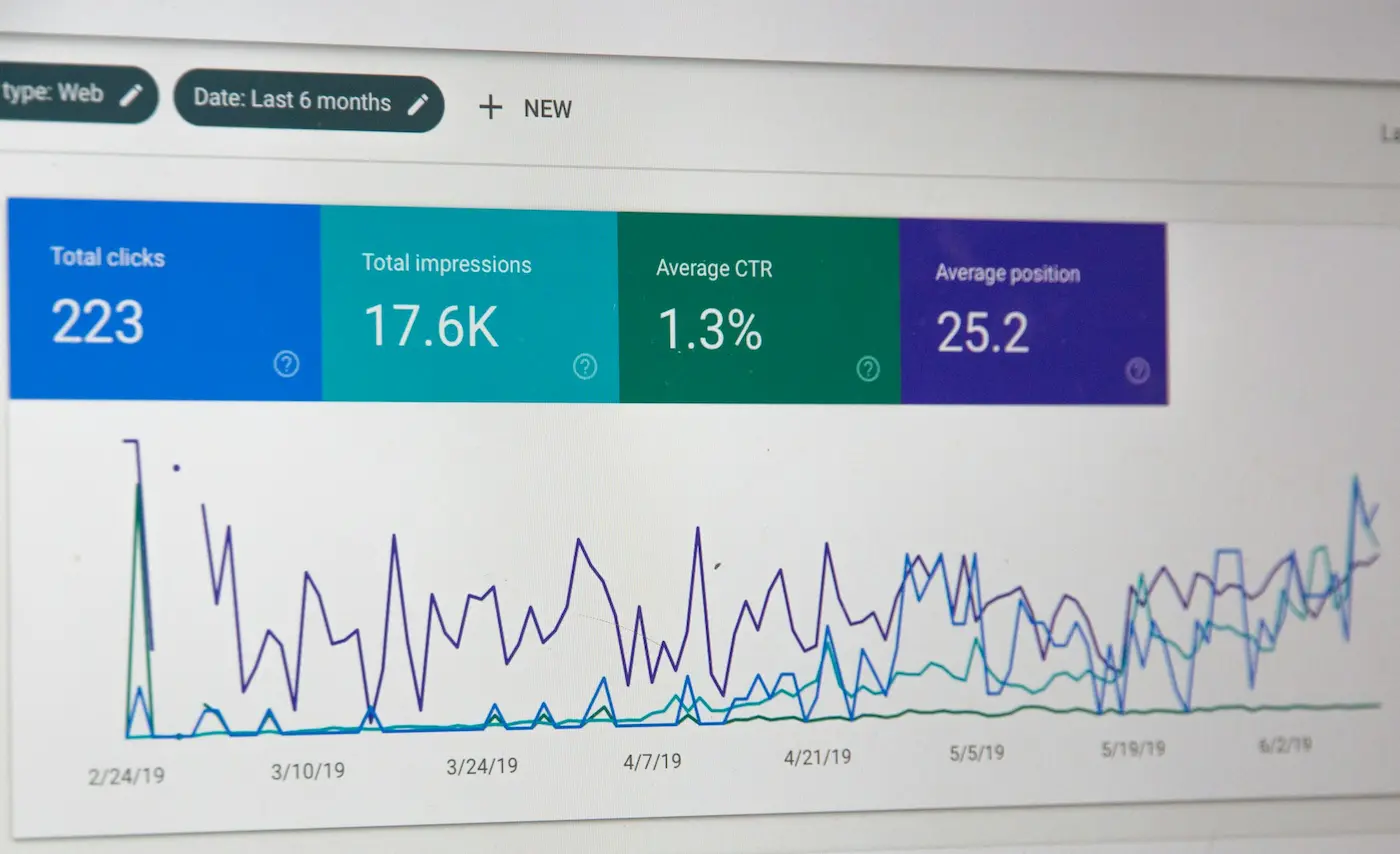
This is the report you’ll check most often, and the best place to start. It shows four figures:
- impressions: how many times your site appeared in the results;
- clicks: how many people clicked through to your site;
- CTR: the share of impressions that turn into clicks;
- average position: your site’s average ranking in the results.
Below the chart, the tabs are invaluable for understanding where your visibility comes from:
- Queries: the searches that make you appear. You’ll often discover words you hadn’t thought of;
- Pages: the pages on your site that attract the most visitors;
- Devices and Countries: mobile or desktop, and where your visitors come from.
How to tell if you’re making progress
Click on the date, then Compare, and choose “Compare last 28 days to previous period”. The pattern is usually the same: impressions rise first, then your position improves, and clicks follow. Check once a month rather than every day: the figures fluctuate a lot from one day to the next.
The Pages report: are you properly indexed?
A page that isn’t indexed simply can’t appear on Google, however good it is. The Pages report shows how many pages are indexed, and why the others aren’t. Some reasons are normal, like a redirected page or a page you deliberately excluded. Others deserve your attention:
- Not found (404): a link points to a page that no longer exists;
- Crawled - currently not indexed: Google has seen the page but doesn’t consider it useful enough for now; this is often a sign of thin content;
- Discovered - currently not indexed: Google knows the page exists but hasn’t crawled it yet, which is common on a new site.
URL Inspection: check a specific page
At the top of the screen, paste a page’s address into the inspection bar. Search Console tells you whether it’s indexed and when it was crawled, and lets you request indexing after a major change. Handy when you’ve just published a new page or a blog post and want Google to take it into account.
There’s no point, however, in requesting indexing for all your pages every week: Google crawls your site on its own, and the sitemap you submitted at the start is enough to point it to new pages. Save this request for important pages you’ve just created or substantially reworked.
Search Console alerts you shouldn’t miss
Search Console emails you when something goes wrong: a security issue, a manual action by Google, a rise in indexing errors. Make sure the email address on the account is one you actually read, so these messages don’t go unnoticed. The Core Web Vitals section also shows whether your pages are considered fast by real visitors, once your site gets enough traffic.
Find content ideas in Search Console
Queries are a real gold mine of content ideas. In the Performance report, filter on a service page, then look at the searches that display it: some phrasings keep coming up that the page only half answers. Add a paragraph or a question to the FAQ, or write a dedicated article. Also look for queries with lots of impressions but few clicks: a more compelling title or description is sometimes all it takes to attract significantly more visits. Google presents all these features on the Search Console overview page.
A 15-minute monthly routine
- Performance: compare the last 28 days to the previous period.
- Queries: spot the searches that are gaining ground, and the ones where you’re on page two, within reach of better content.
- Pages: check that no new errors have appeared.
- Links and alerts: a quick glance to make sure nothing unusual is going on.
The bottom line
Google Search Console is free, reliable and enough to track the essentials of your SEO: what people search for to find you, and whether your pages are being taken into account. To go further on local visibility, read my Google Business Profile guide. And if you’d like us to analyze your figures together, discover my WordPress SEO services, or let’s talk.
Is Google Search Console free?
Yes, completely. All you need is a Google account and to prove that you own the site, by adding a record with your domain name provider or a tag on the site.
How is it different from Google Analytics?
Search Console shows how your site appears in Google’s results: searches, positions, clicks, indexing. An audience measurement tool like Google Analytics shows what visitors do once they’re on the site, wherever they come from.
How long before you see any data?
The first data usually appears a few days after you add the site. To judge a trend, compare periods of 28 days or three months instead.