WordPress Maintenance: The Checklist for a Safe, Fast Site
Backups, updates, security, forms, speed, Search Console: the WordPress maintenance checklist to follow every week, every month and every year to keep your site safe, fast and reliable.

A WordPress site isn’t a brochure you print once and forget about. It’s software, with a core, a theme and plugins that are constantly evolving, and that bots probe around the clock looking for vulnerabilities. Without upkeep, it slows down, becomes more and more fragile, and one day it simply stops working. Here is the WordPress maintenance checklist I follow, organized by frequency.
WordPress maintenance: every week
Check your backups
This is the foundation of everything: if something goes wrong, a backup is what lets you get your site back. A good backup is:
- complete: the site’s files and the database;
- automatic and regular;
- stored somewhere other than the site’s server, so it survives an outage or a hack of the hosting;
- tested: a backup you’ve never tried to restore is just an assumption.
Apply updates
The WordPress core, the theme and the plugins regularly receive fixes, many of them security-related. Most hacked WordPress sites were breached through a plugin that hadn’t been updated.
The right method is simple:
- make a backup just before;
- update plugins one at a time, or in small batches;
- check the main pages and forms right afterward.
For a business-critical site, updates are first tested on a copy of the site, known as a staging site, before they are applied to the live site.
Every month
Test the site like a visitor
Browse your main pages on a computer and on a phone, the way a prospective customer would. Above all, send yourself a message through your contact form: a form that has stopped working is the most common failure, and the most silent one. You only notice when you start wondering why the inquiries have dried up.
Clean house
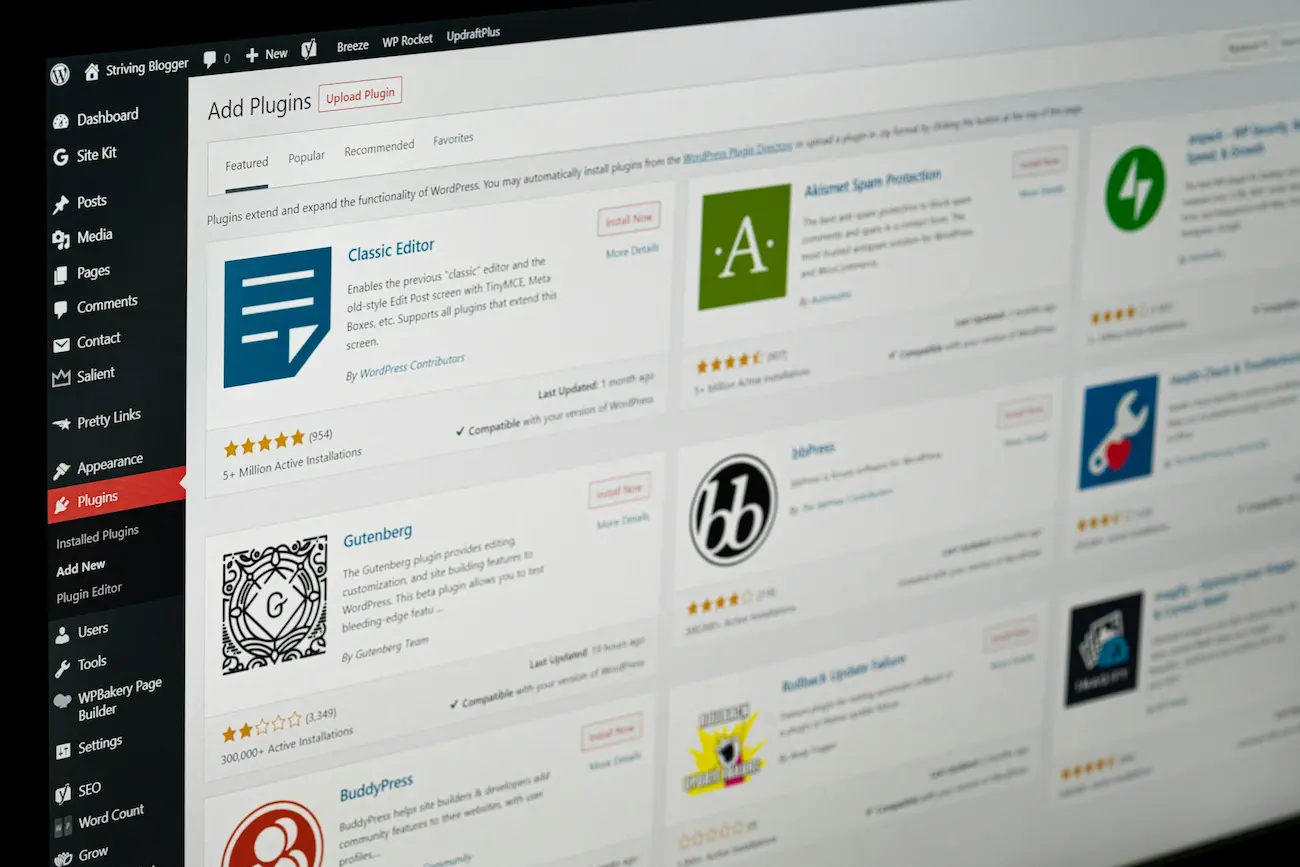
- Delete unused plugins and themes: even deactivated, they remain a possible way in for attackers.
- Clean up the database: old revisions, spam comments, temporary data.
- Clear out the media library: duplicate images, or images that were never used.
Review access
- Delete the accounts of former employees or contractors who no longer work on the site.
- Make sure every administrator account has a strong password, and turn on two-factor authentication.
- Give everyone the minimum role they need: an editor doesn’t need to be an administrator.
Monitor security
A web application firewall, provided by a security plugin or by your host, blocks a large share of automated attacks. Take a look at its alerts from time to time, and check that your HTTPS certificate is still valid.
Check speed
Test your main pages with PageSpeed Insights. A sudden drop in the score often comes from a new plugin, an oversized image or a cache setting that an update switched off. My article on how to speed up a WordPress site goes through the solutions.
Check Google Search Console
Search Console tells you what Google sees: pages that are no longer indexed, 404 errors, and even security issues detected on your site. A monthly glance is enough to spot a problem before it costs you rankings.
Every year
- Check the PHP version on your hosting: older versions no longer receive security fixes.
- Keep track of renewals for your domain name and hosting, and of licenses for premium plugins.
- Review your content: opening hours, prices, team, legal notice, past projects. An up-to-date site inspires trust.
- Take stock of your plugins: some are no longer maintained by their authors and need to be replaced with an alternative that still is.
Use this yearly review to ask yourself a simple question: is the site still serving your goals? If inquiries are getting scarce or the design has aged, maintenance alone is no longer enough, and it may be time to consider a redesign.
How long does WordPress maintenance take?
For a brochure website with a dozen plugins, expect about an hour a month, a little more in the months when a major update comes out. The longest part isn’t applying the updates, it’s checking that everything still works afterward: pages, forms, mobile display. The official WordPress documentation details the update procedure and the precautions to take. Regular WordPress maintenance always costs less than an emergency repair after a hack or an outage.
If the worst happens
A defaced site, redirects to shady websites, a warning from Google or your host: don’t panic, but act fast and methodically.
- Restore a backup from before the hack.
- Change every password: admin, hosting, FTP, database.
- Update the core, the theme and all the plugins.
- Identify the vulnerability, often an outdated plugin, so it can’t be used a second time.
- If Google flagged your site, request a review in Search Console once the site is clean.
These are the moments when you realize how valuable a recent, tested backup really is.
WordPress maintenance: do it yourself or hand it off?
With this checklist and an hour a month, a simple site can perfectly well be maintained by its owner. If you’d rather focus on your business, or if your site is critical to your activity, WordPress maintenance handled by a professional takes care of all of it: backups, updates, security and monitoring.
The bottom line
Back up and update every week, test and clean up every month, review everything once a year: that’s the routine that keeps a WordPress site safe, fast and reliable. If your site has fallen behind, let’s talk: a quick review will show you where to start.
How often should WordPress be updated?
Check for updates at least once a week. Security updates should be applied quickly, because known vulnerabilities are exploited by bots that crawl the web around the clock.
Are automatic updates a good idea?
For minor and security releases of WordPress, yes. For major theme or plugin updates, it’s better to make a backup first and check the site right afterward.
What should I do if my WordPress site has been hacked?
Restore a clean backup from before the hack, change every password (admin, hosting, database), update everything, then track down the vulnerability. If you don’t know how, get help quickly.